



































How to Optimise NVR Storage Settings Before Buying a New Hard Drive
If your NVR is constantly running out of storage, your first instinct might be to buy a bigger hard drive. But before you spend the money, the best way to optimise NVR storage settings is to check your recording configuration first — it's often the real culprit.
Here are four settings to check and optimise right now to reduce CCTV bandwidth and storage usage.
About Secure On Australia
Are you looking to secure your home or business? Managing your safety shouldn't be complicated. Secure On provides high-quality security cameras and surveillance systems tailored for Australian properties. Whether you need remote monitoring or 24/7 recording, find the reliable equipment you need to protect what matters most.
Go to website ↗
1. Lower your resolution
Most NVRs default to the highest resolution available, but how much storage does a 4K security camera actually use? A lot. Do you really need 4K footage of a back storeroom or a side gate?
Dropping from 4K (8MP) to 1080p (2MP) can reduce file sizes by up to 75% without meaningfully impacting your ability to identify people or incidents in most scenarios. This is one of the most effective CCTV storage optimisation tips for beginners and experienced installers alike.
Where to adjust: NVR menu → Camera Settings → Encoding → Main Stream Resolution

Stream settings with Smart Codec turned on
2. Switch to H.265 compression
If your cameras and NVR support it, H.265 (also called HEVC) compresses footage roughly twice as efficiently as the older H.264 standard, with no visible loss in quality. When comparing H.265+ vs H.264 storage savings, the difference is significant — this single change can effectively double your storage capacity overnight.
Dahua smart codec storage optimization takes this further with Smart H.265+, which dynamically adjusts bitrate based on scene complexity. Hikvision H.265+ configuration works similarly — both are worth enabling if your hardware supports it.
Where to adjust: NVR menu → Camera Settings → Encoding → Video Compression
⚠️ Note: Both your NVR and cameras must support H.265. Most modern Dahua, Hikvision, and HiLook devices do.
3. Reduce your bitrate
Bitrate controls how much data is recorded per second. Higher bitrate = sharper image, but far more storage consumed. Choosing the best bitrate for a 4MP security camera is a balance — too high wastes space, too low degrades image quality.
For most residential and small business applications, a bitrate of 1024–2048 Kbps at 1080p is more than sufficient. Many systems ship with bitrates set unnecessarily high. Reducing this is one of the fastest ways to make your NVR hard drive last longer.
Where to adjust: NVR menu → Camera Settings → Encoding → Max Bitrate
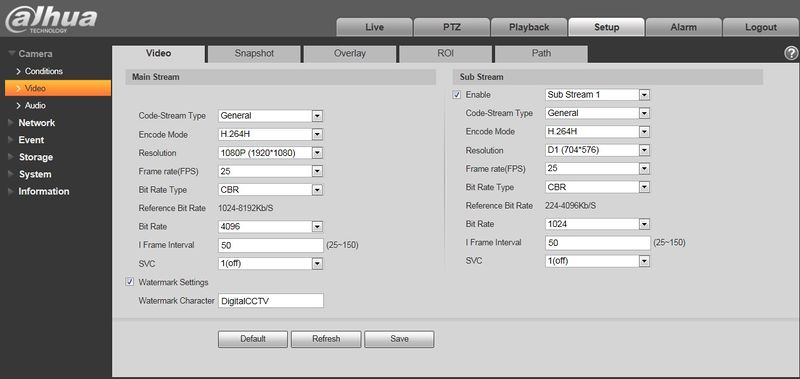
Camera Video Configuration (Source)
4. Record on motion only
Continuous vs motion recording storage calculation: 24/7 continuous recording fills drives fast. Switching to motion-triggered recording means your NVR only saves footage when something actually happens.
For low-traffic areas like car parks, side gates, or storage rooms, this alone can extend your storage life by weeks. TP-Link VIGI motion detection recording setup follows the same principle — configure your schedule to record on motion only for non-critical zones.
Understanding NVR overwrite settings is also important here: most NVRs will automatically overwrite the oldest footage when the drive is full. Combined with motion-only recording, you'll retain far more relevant footage for longer.
Where to adjust: NVR menu → Storage → Schedule → Set to Motion Detection
Video instructions on Dahua Schedule Record

Still running out of space?
If you've optimised all four settings and storage is still an issue, it may be time to upgrade your hard drive or add a second HDD bay. This is the security camera NVR storage full fix when software settings alone aren't enough.
Secure On Australia stocks NVR-compatible surveillance-grade hard drives built for 24/7 operation - not standard desktop drives that fail under continuous workloads.